



在最新的 Tailwind CSS v4 中,配置变得非常简单了。我们不再需要去修改复杂的 JavaScript 配置文件,而只需在 CSS 中使用 @theme 块和原生 CSS 变量,就能轻松自定义主题颜色、间距等。
Tailwind CSS @theme 语法
在 Tailwind CSS v4 中,所有的配置都是在一个名为 “@theme” 的 CSS 代码块中定义的。其中,@theme {} 块内定义的任何以 “--” 开头的 CSS 变量,都会被自动识别为 Tailwind 的类名。
语法:
@theme {
    /* 定义品牌颜色 */
    --color-primary: #19b694;

    /* 定义自定义间距 */
    --spacing-15: 3.75rem;
}
说明:
比如在 @theme 中定义了 --color-primary,然后我们就可以在 HTML 中直接使用 bg-primary 或 text-primary 这样的类名。
Tailwind CSS @theme 示例
接下来,我们通过几个简单的例子来讲解一下 Tailwind CSS 中的 @theme 指令是如何使用的。
示例 1:@theme 自定义品牌色
<!DOCTYPE html>
<html>
<head>
    <meta charset="utf-8">
    <meta name="viewport" content="width=device-width, initial-scale=1.0">
    <title></title>
    <script src="https://unpkg.com/@tailwindcss/browser@4"></script>
    <style type="text/tailwindcss">
        @theme {
            --color-lvyenet: #19b694;
            --color-lvyenet-dark: #16A183;
        }
    </style>
</head>
<body class="p-10">
    <button class="px-8 py-3 bg-lvyenet hover:bg-lvyenet-dark text-white font-bold rounded-xl shadow-lg shadow-lvyenet/30 transition-colors cursor-pointer">
        开始学习
    </button>
</body>
</html>页面效果如下图所示。

分析:
在这个例子中,我们没有使用 Tailwind 默认的类名(比如 green-500),而是通过 @theme 来定义了一个专属的 lvyenet 变量。其中:
bg-lvyenet:等价于 bg-[#19b694]。shadow-lvyenet/30:等价于 shadow-[#19b694]/30。
这样一来,就可以避免在 HTML 中重复写 “xxx-[#19b694]” 这样的任意值,从而使得代码更具语义化。
示例 2:@theme 自定义字体大小
<!DOCTYPE html>
<html>
<head>
    <meta charset="utf-8">
    <meta name="viewport" content="width=device-width, initial-scale=1.0">
    <title></title>
    <script src="https://unpkg.com/@tailwindcss/browser@4"></script>
    <style type="text/tailwindcss">
        @theme {
            --spacing-large: 5rem;
            --text-lvye: 3.5rem;
        }
    </style>
</head>
<body class="p-large">
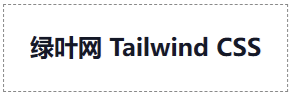
    <h1 class="text-lvye font-black text-gray-900">
        绿叶网 Tailwind CSS
    </h1>
</body>
</html>页面效果如下图所示。
覆盖 Tailwind CSS 默认预设值
在实际开发中,如果觉得 Tailwind CSS 默认的颜色(比如 bg-green-500)不太好看,但又不想创建一个全新的类名,此时应该怎么办呢?
在 Tailwind CSS 中,我们可以在 @theme 块中直接定义同名的变量,然后该同名变量的值就会覆盖原来的预设值。
示例 3:@theme 覆盖默认的绿色
<!DOCTYPE html>
<html>
<head>
    <meta charset="utf-8">
    <meta name="viewport" content="width=device-width, initial-scale=1.0">
    <title></title>
    <script src="https://unpkg.com/@tailwindcss/browser@4"></script>
    <style type="text/tailwindcss">
        @theme {
            /* 强制将 Tailwind 默认的 green-500 替换为我们想要的颜色 */
            --color-green-500: #19b694;

            /* 强制修改默认的 sm 圆角大小 */
            --radius-sm: 8px;
        }
    </style>
</head>
<body class="p-10">
    <button class="px-6 py-2 bg-green-500 text-white rounded-sm cursor-pointer">
        绿叶网
    </button>
</body>
</html>页面效果如下图所示。

分析:
Tailwind CSS 在编译时,会优先使用我们在 @theme {} 中定义的值。这种 “同名覆盖” 的机制,让我们可以在不改变既有代码类名的前提下,轻松完成整个网站的主题大换血。
Tailwind CSS 多主题皮肤
在实际的企业级开发中(尤其是后台管理系统),我们经常会遇到 “动态换肤” 的需求:用户点击切换按钮,就可以把整个网站的主色调从 “绿叶绿” 切换为 “火山红” 或 “天空蓝” 等。
如果到处使用硬编码的颜色(如 bg-green-500),实现换肤将是一场噩梦。但在 Tailwind CSS v4 中,借助于 @theme 的纯 CSS 特性,我们可以非常优雅地实现一键换肤。
主要思路是:把 Tailwind CSS 的自定义颜色绑定到一个原生的 CSS 变量上,当我们需要换肤时,只需要通过 JavaScript 改变那个原生变量即可。
示例 4:多主题切换
<!DOCTYPE html>
<html>
<head>
    <meta charset="utf-8">
    <meta name="viewport" content="width=device-width, initial-scale=1.0">
    <title></title>
    <script src="https://unpkg.com/@tailwindcss/browser@4"></script>
    <style type="text/tailwindcss">
        /* 默认皮肤为绿叶色 */
        :root {
            --app-theme-color: #19b694;
        }

        /* 如果加上了 .theme-red 类名,主色调变为红色 */
        .theme-red {
            --app-theme-color: #ef4444;
        }

        /* 如果加上了 .theme-blue 类名,主色调变为蓝色 */
        .theme-blue {
            --app-theme-color: #3b82f6;
        }

        /* 将 Tailwind 的品牌色映射到上面的原生变量 */
        @theme {
            --color-brand: var(--app-theme-color);
        }
    </style>
</head>
<body class="p-10 bg-gray-50 flex flex-col items-center">
    <div class="w-80 p-6 bg-white rounded-xl border-t-4 border-brand shadow-md">
        <h2 class="text-2xl font-bold text-brand mb-4">绿叶网</h2>
        <button class="w-full py-2 bg-brand text-white font-bold rounded-lg hover:opacity-90 transition-opacity">
            主按钮
        </button>
    </div>
    <div class="mt-8 flex space-x-4">
        <button onclick="document.documentElement.className=''" class="px-4 py-2 bg-[#19b694] text-white rounded cursor-pointer">绿叶绿</button>
        <button onclick="document.documentElement.className='theme-red'" class="px-4 py-2 bg-[#ef4444] text-white rounded cursor-pointer">火山红</button>
        <button onclick="document.documentElement.className='theme-blue'" class="px-4 py-2 bg-[#3b82f6] text-white rounded cursor-pointer">天空蓝</button>
    </div>
</body>
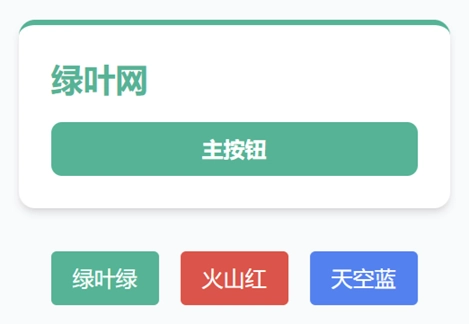
</html>页面效果如下图所示。
分析:
在这个例子中,我们实现了 “一键换肤” 的功能。这里巧妙地结合了原生 CSS 变量和 @theme 指令。可以分为以下简单的 3 步:
- 定义底层原生变量:首先,我们在 :root(代表整个网页的根节点)中定义了一个名为 --app-theme-color 的 CSS 变量(默认是绿叶绿)。然后,我们又定义了 .theme-red 和 .theme-blue 这两个类名,它们的作用仅仅是修改这个变量的值。
- 桥接 Tailwind 颜色:这是最关键的一步。我们在 @theme 块中,把 Tailwind CSS 的自定义颜色 --color-brand 绑定到了刚才那个原生变量 var(--app-theme-color) 上。
- JavaScript 触发全站切换:在 HTML 结构中,我们所有的 UI 都统一使用 bg-brand、text-brand 这样的类名。当用户点击底部的颜色按钮时,JavaScript 会把 html 标签的类名替换成 theme-red 或是 theme-blue。此时,底层的原生变量改变了,Tailwind CSS 映射的 brand 颜色也会瞬间跟着改变,从而实现全站换肤功能。
常见问题
1. Tailwind CSS 的 v4 版本还需要配置 tailwind.config.js 吗?
对于绝大多数项目来说,已经不需要了。在 Tailwind CSS v4 中,所有的配置(颜色、字体、断点、插件等)都可以直接写在 CSS 文件里的 @theme {} 块中。这样不仅让构建速度大幅提升,同时也让配置过程变得更加直观。
2. 为什么我自定义的颜色没有生效呢?
如果发现自定义的颜色不生效,我们优先检查以下几个方面:
- 变量名是否以 “--color-” 开头(这是 v4 的识别规范)。
- 是否将 type 属性值设置为了 "text/tailwindcss"(如果是使用 CDN 的话)。
- 是否在同一个 CSS 文件中正确闭合了 @theme { ... } 块。